
Adopting Liquid Glass: Experiences and Pitfalls
Updated for iOS 26.1 / iPadOS 26.1

It’s the start of October, and summer has passed since the launch of the iOS 26 / iPadOS 26 / macOS 26 lineup with the new Liquid Glass design. Have you updated your app to adopt the Liquid Glass design yet, or are you waiting for the OS to be stable before starting?
Instead of spending the whole summer reworking my apps’ designs, I recently adopted the new design in some of my apps while maintaining the same look on older platforms. I’ve learned a few lessons and pitfalls along the way that might help.
This blog shares the experiences I had and the pitfalls I encountered.
GlassEffect Rotation issue in SwiftUI
Menu / Button morphing animation issue
Icon symbol variant
Use
GlassEffectContainerto bring better animation and performance
Fix hit-testing for buttons using glass effect
GlassEffect Rotation issue in SwiftUI
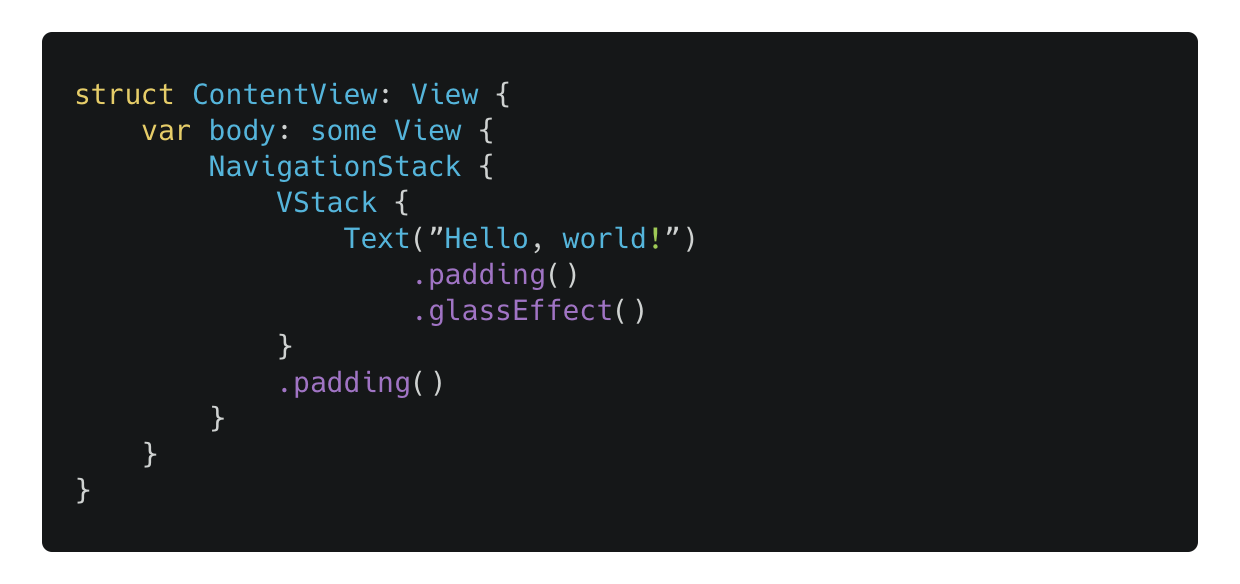
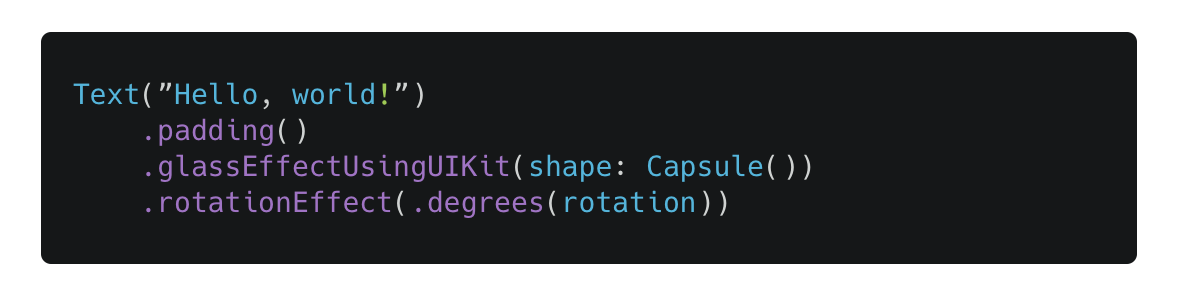
Consider this code, which applies the glass effect to a Text with padding. It looks normal and acts normal when rotating your iPhone to the landscape position.
However, when you apply the rotationEffect(_:anchor:) to your view, the animation will look different and weird:
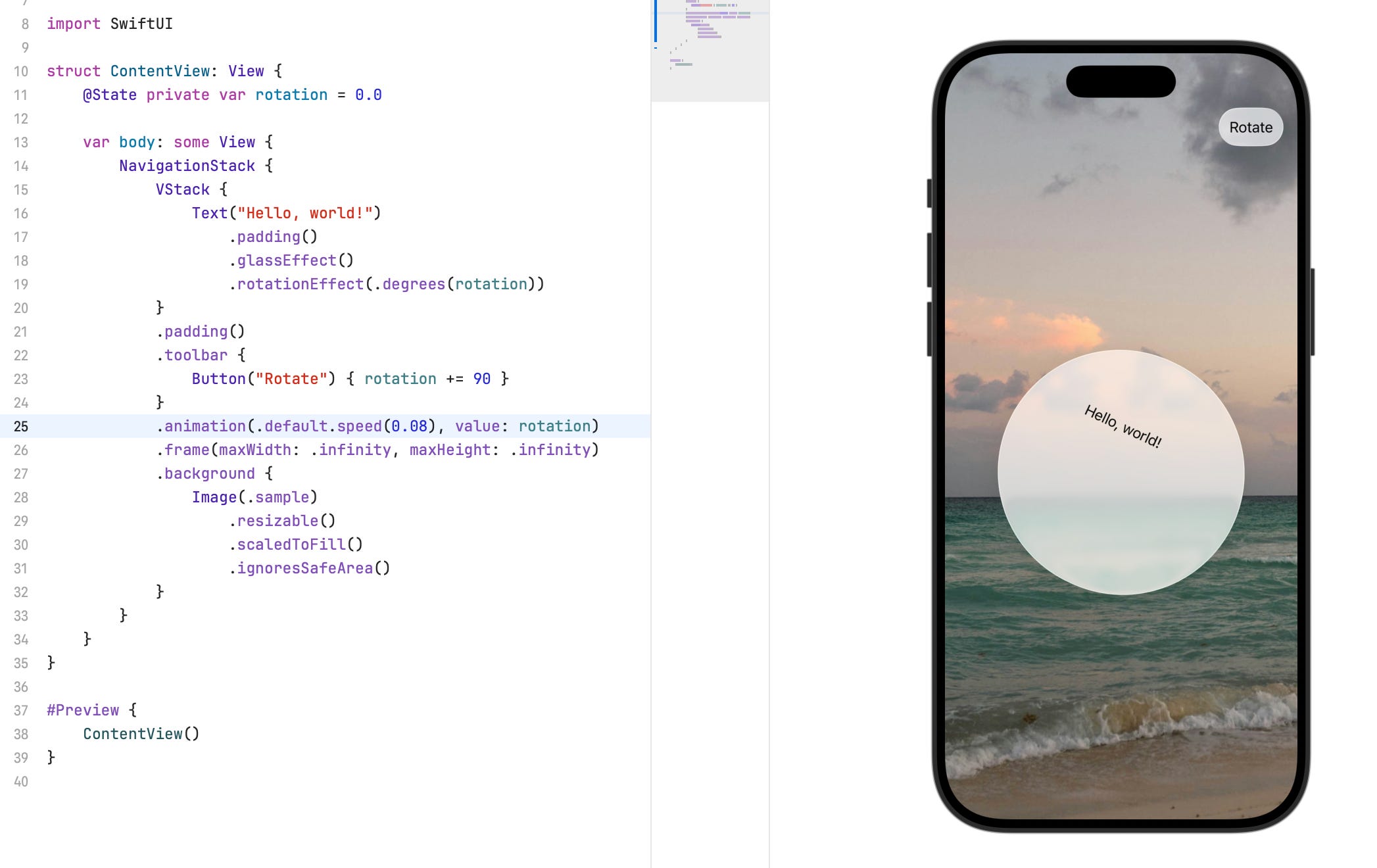
More specifically, the shape of the glass effect changes during the animation, and it’s like it’s calculated based on the original bound of the view and the current presenting bound of the view. As a result, the shape of the glass effect will change from capsule to circle, then change to back to a rotated capsule. I snapshot how it looks during the animation to help you understand what’s going on here:
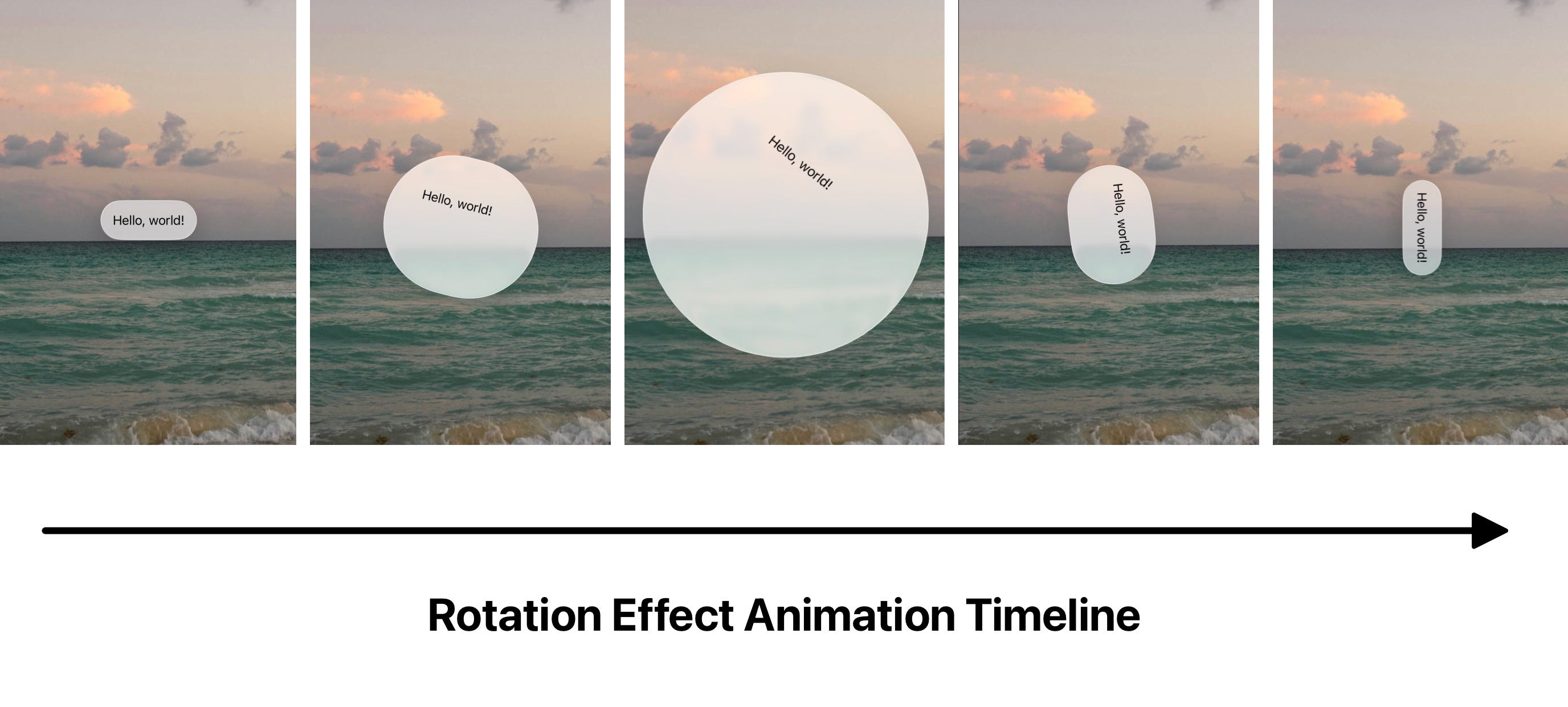
This isn’t what we want. When a view rotates, the glass effect should rotate along with the view, as if it’s the part of the view.
You may wonder when we need to rotate a view individually instead of rotating the whole screen to landscape. Normally, we should let the screen rotate and adopt the landscape design.
However, for some camera apps, it’s common to stay in portrait when the user rotates the device, and rotate certain UI elements instead so the user can still read the content.
For my PhotonCam app, it uses Core Motion to detect the handheld position and rotate some UI elements accordingly, like this:
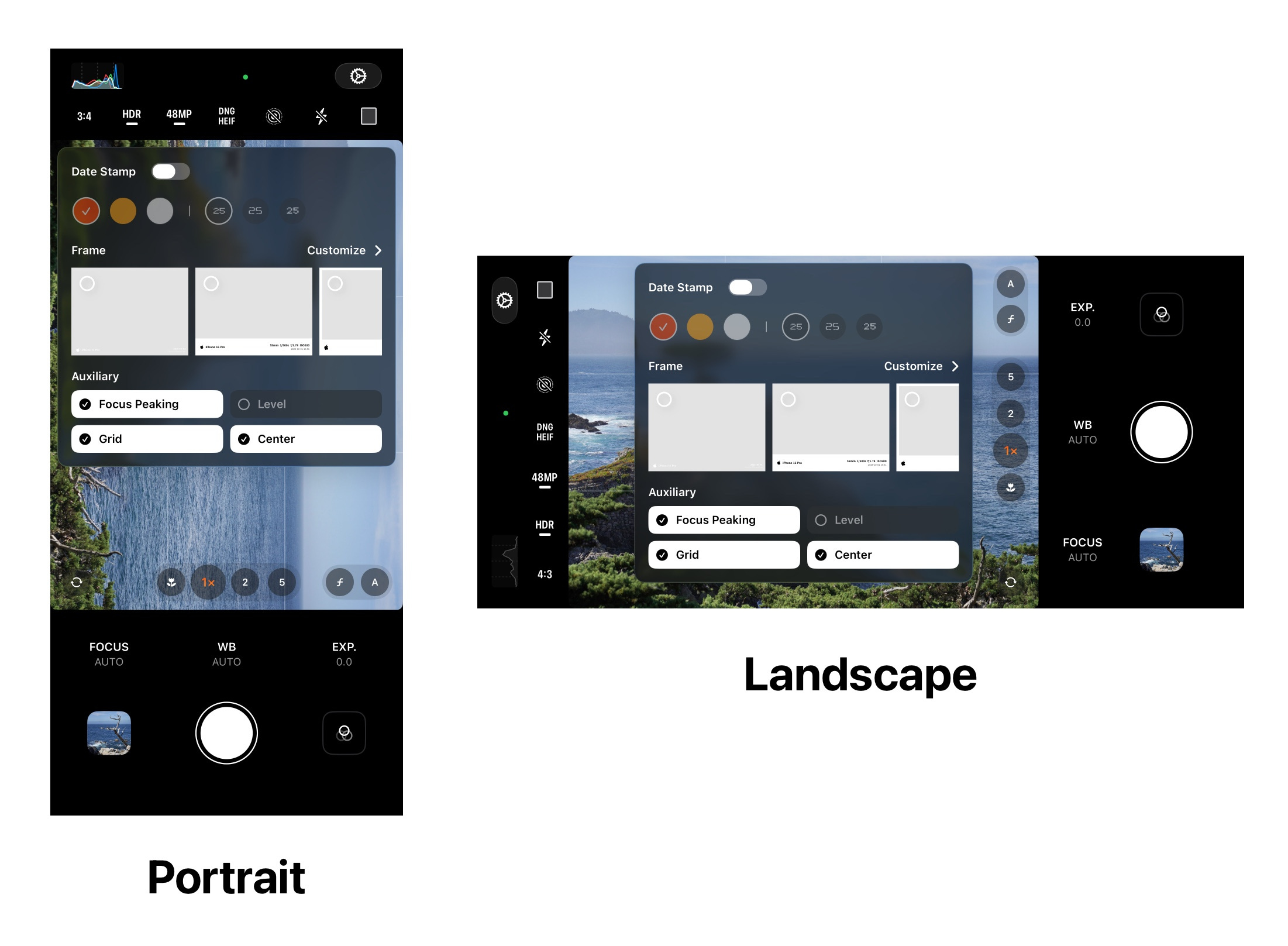
Comparing the screenshots above, you’ll notice the top toolbar (3:4, HDR, 48MP, etc.), overlay settings panel, camera controls (EXP, WB, FOCUS), as well as the filter and gallery buttons are rotated individually. If you try this on a real device, the animation feels smooth.
So how to address this animation issue?
I have tried some ways like putting the glass effect in some different places and ended up nothing. Finally, I found that there is not an issue when using the counterpart UIKit component (specifically, the underlying Core Animation component).
So, to achieve this effect:
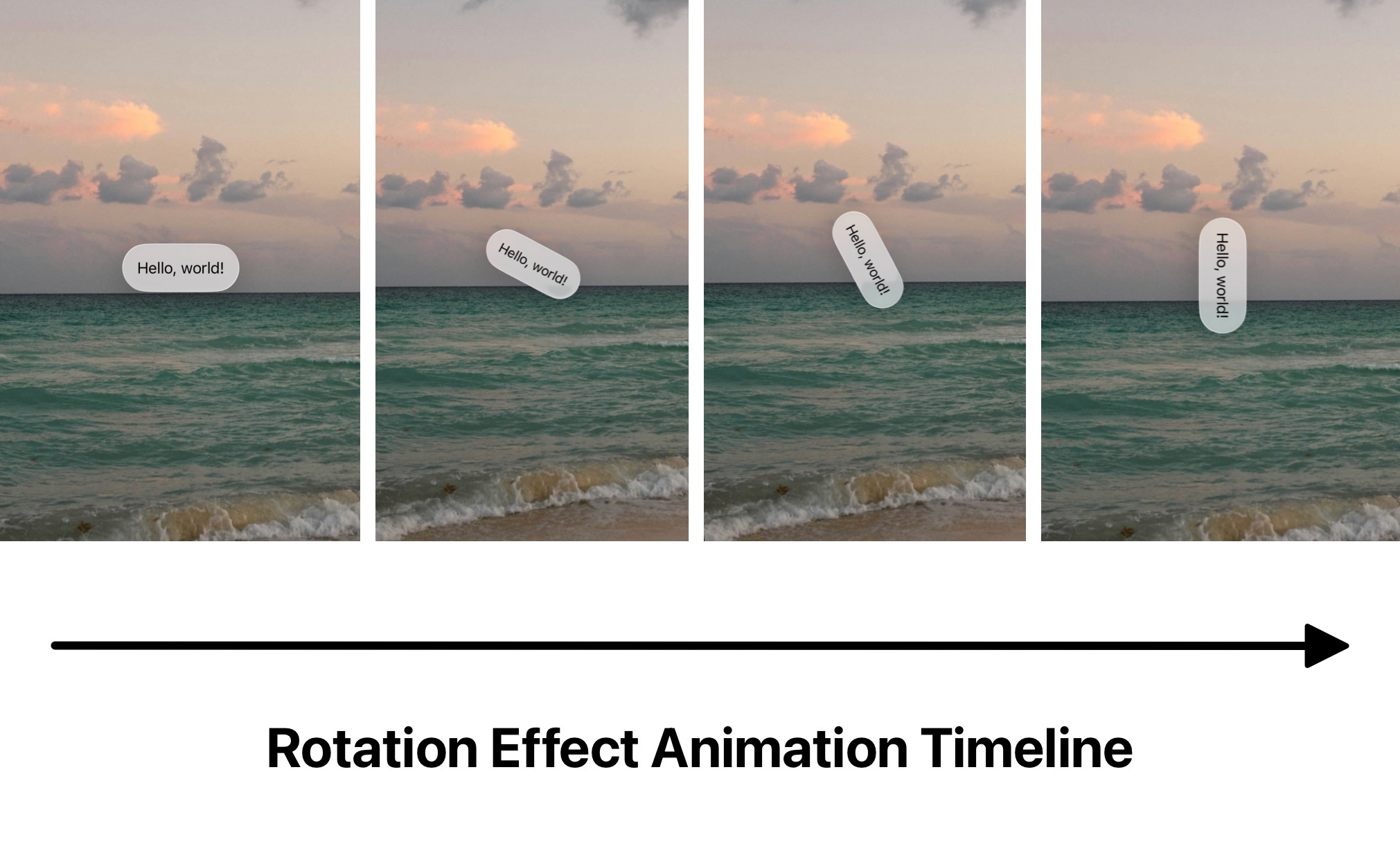
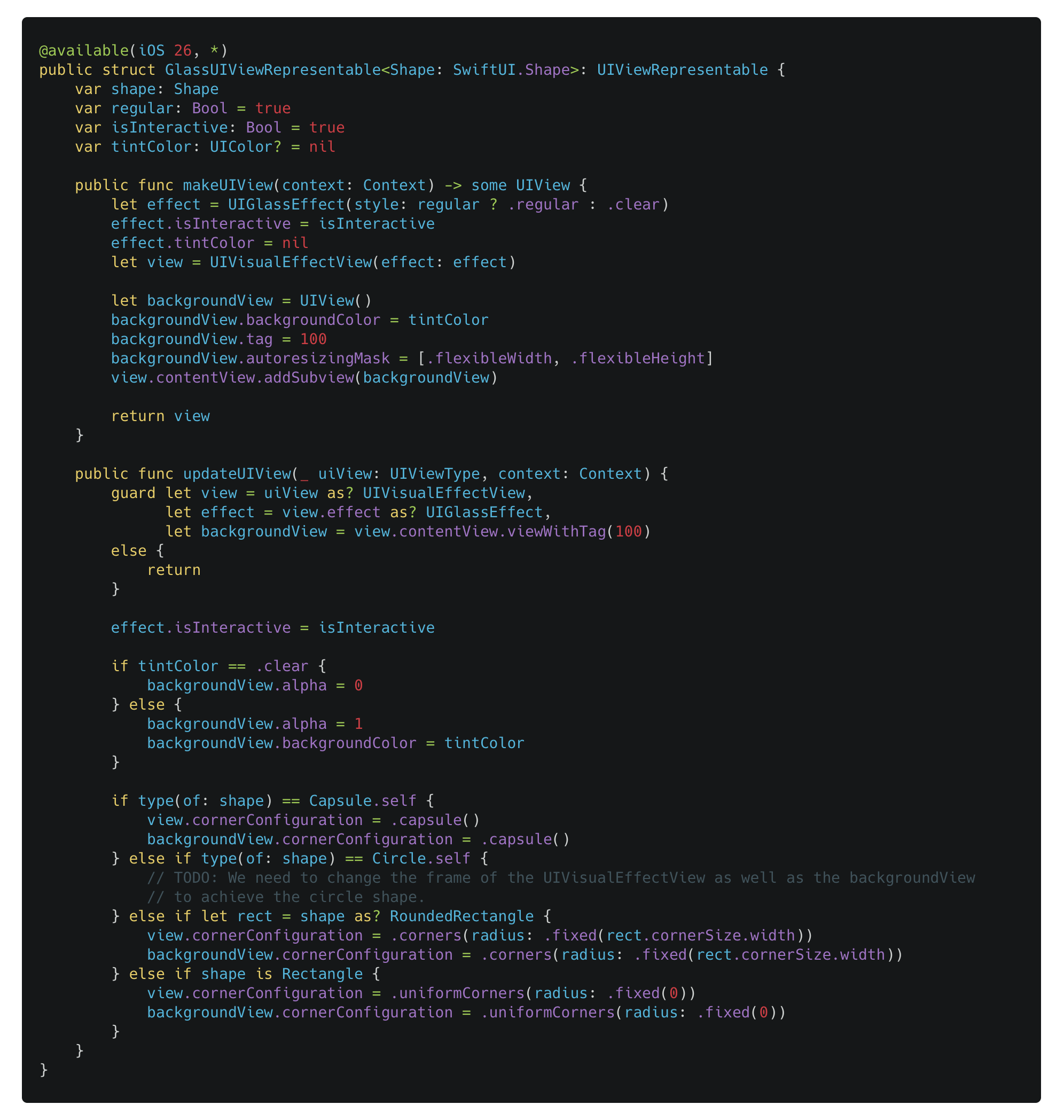
We need to bridge the UIView representation to the SwiftUI world:
First, define a view that conforms to
UIViewRepresentable.
In the
makeUIView(context:)method, we return anUIVisualEffectViewwithUIGlassEffect. If you need to tint the glass effect, you also need to insert a background view to achieve the tinting.
Set the
cornerConfigurationto theUIViewaccordingly, which is a new method introduced in iOS 26.
You can find the full code here.
Then, you can make an extension method for View to easily add this as a background:
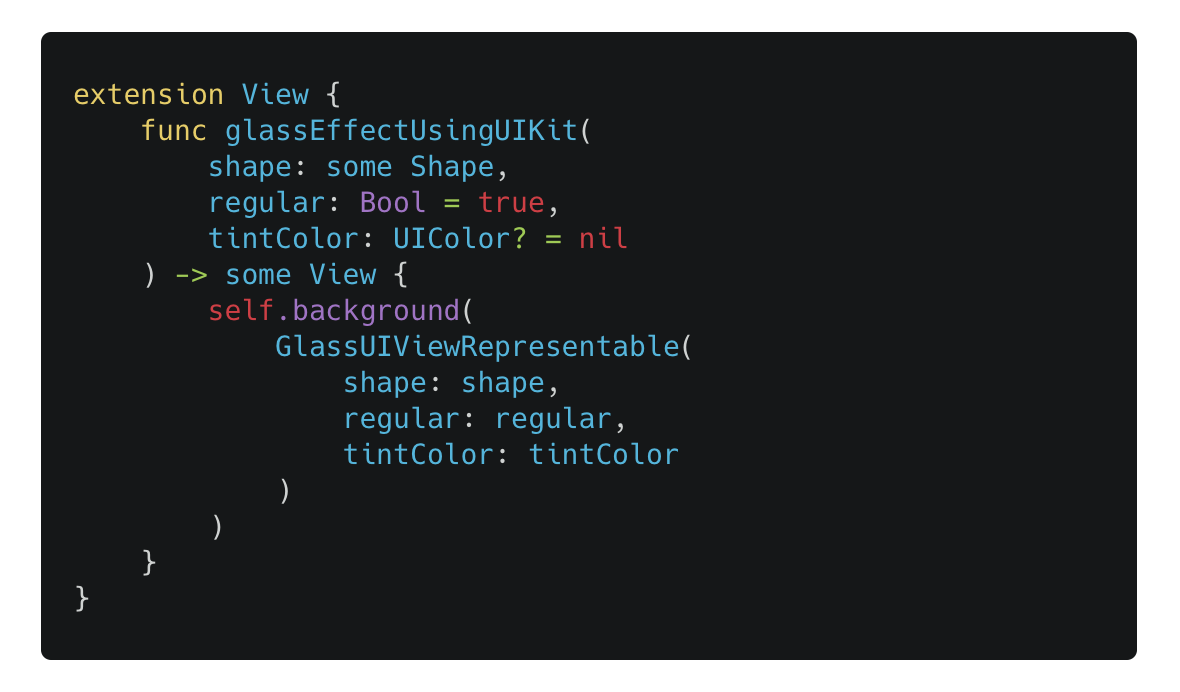
Then, apply this method to your SwiftUI view:
Menu morphing animation issue (iOS 26.0 ~ iOS 26.0.1)
NOTE: This workaround only works on iOS 26.0 ~ iOS 26.0.1. Apple seems to continue to change the underlying behavior of the menu morphing animation. The next section will talk about the workaround that works on both iOS 26.0 and iOS 26.1.
Adding a glass effect to a SwiftUI is quite simple, basically you will just need to use the glassEffect(_:in:) modifier to apply the effect to your SwiftUI view, and then the underlying framework will take care all the other things for you.
However, even as simple as the API is, there is a chance that your app will have glitches regarding the morphing animation.
Given this simple code:
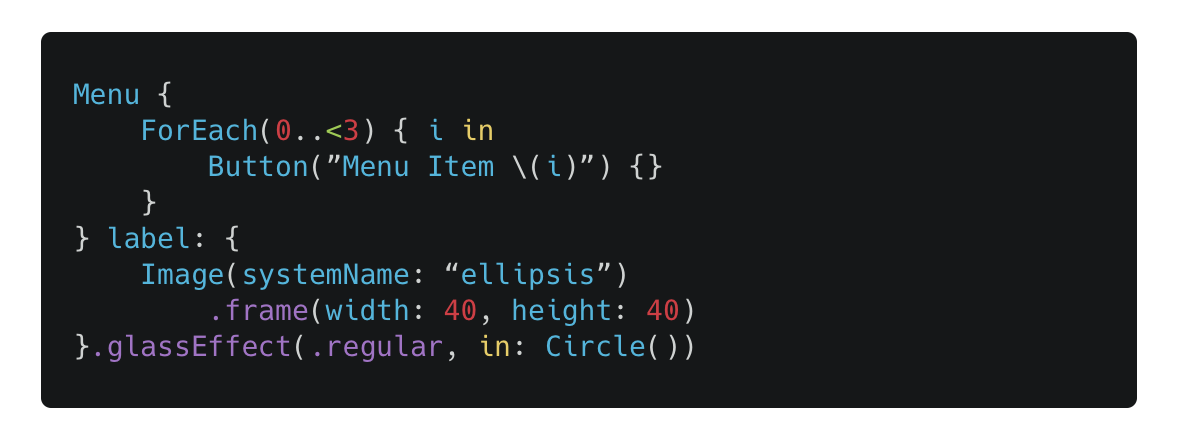
There will be some glitches when the glass effect morphs from the circle to the rounded rectangle and then morphs back to circle. This is tested using Xcode 26.0.1 running on iPhone 16 Pro with iOS 26.0.1:
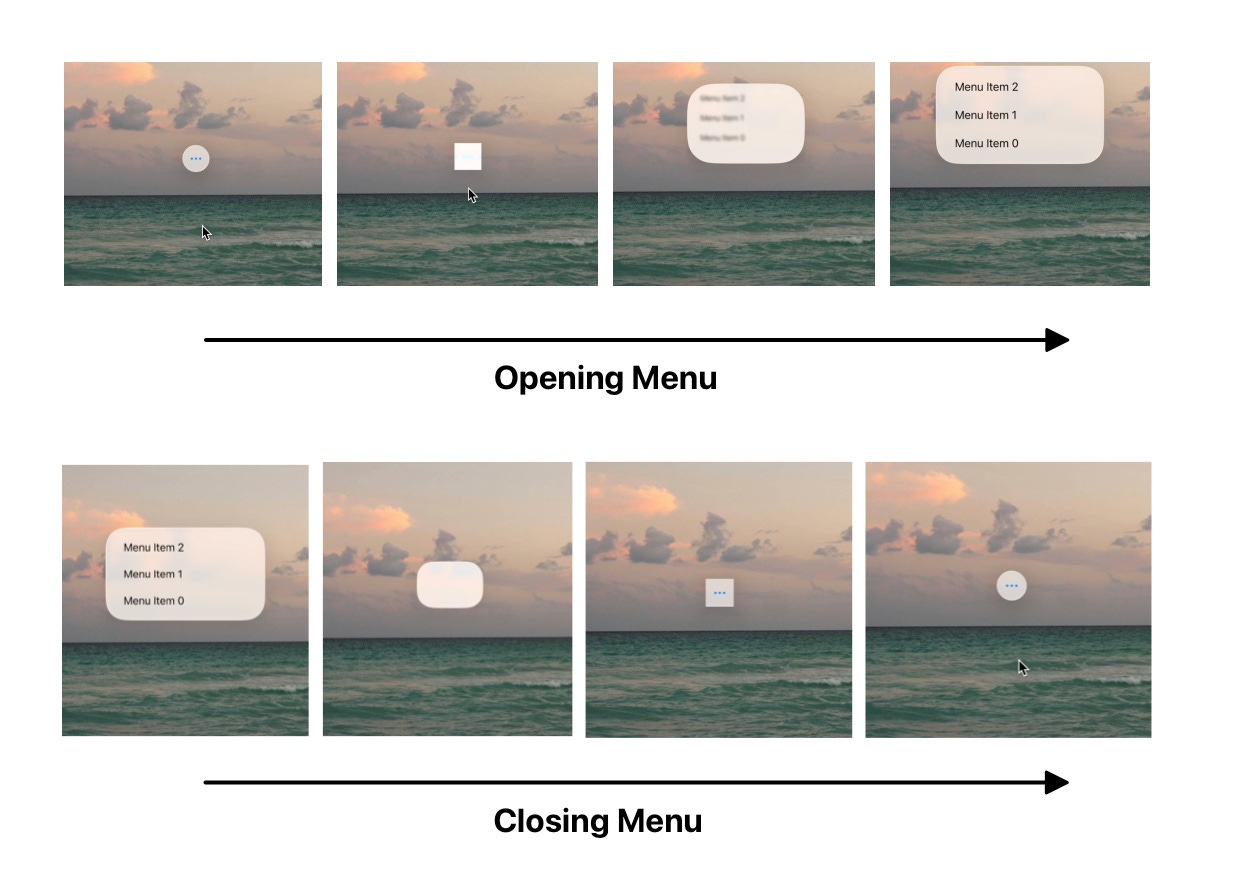
The main glitch is that, even when the Menu’s glass effect is defined as a circle, the morphing animation always starts and ends as a rectangle, then abruptly snaps back to a circle without animation.
The workaround of this issue is also simple:
Make sure you add the glassEffect(_:in:) modifier to the outer Menu, instead of the inner label.
Make the glass effect as interactive, as shown below.
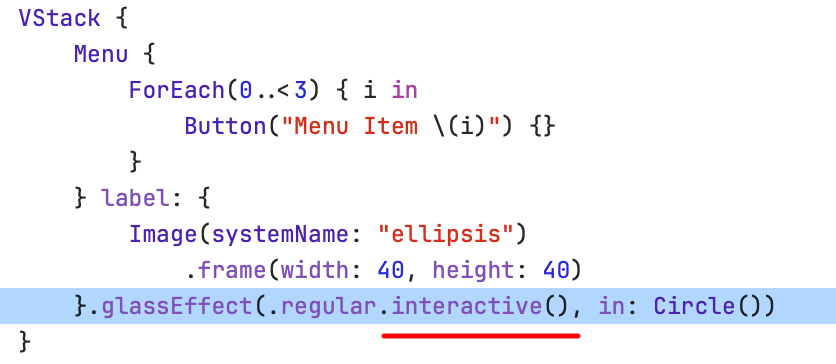
This simple trick helps avoid animation glitches when using the glass effect on a Menu in SwiftUI. It appears to be a system issue, so sending feedback to the Apple SDK team is a good idea in hopes they’ll fix it.
Menu morphing animation issue (iOS 26.1)
As mentioned earlier, it’s easy to have a broken animation when using Menu in SwiftUI. The trick above no long works on iOS 26.1. Luckily, we have another solution for that:
Declare your own button style conforming a ButtonStyle.
Apply glassEffect to the label of the button style. This is not the same effect to applying glassEffect to the label view when declaring a Menu.
Set this style using buttonStyle(_:) to a Menu.
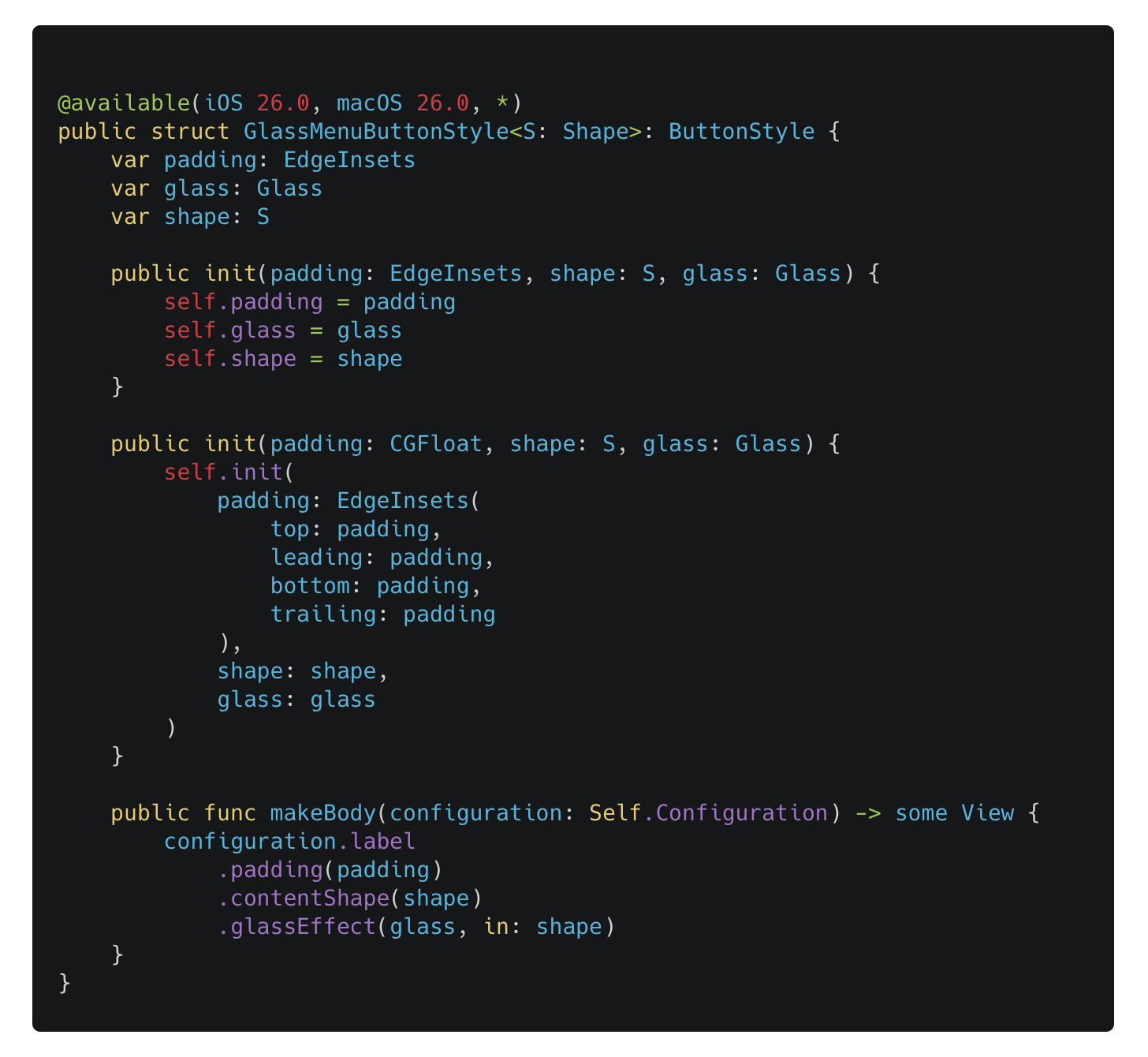
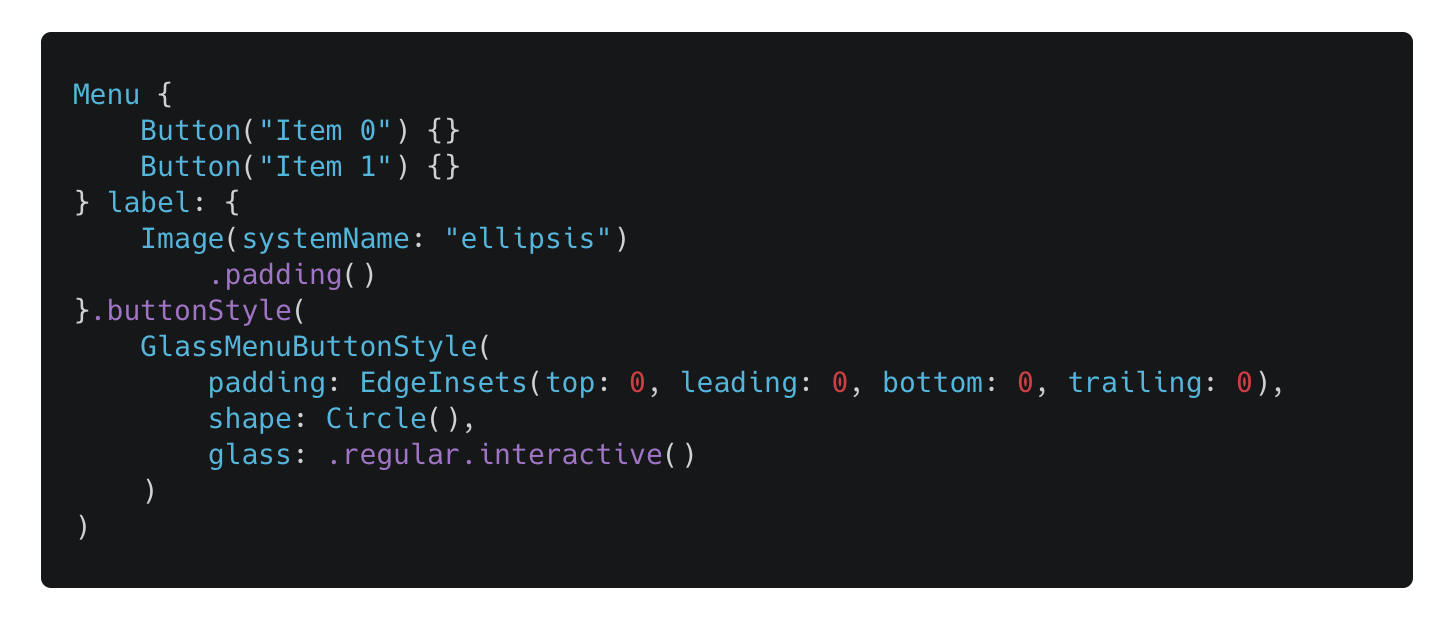
Example code to use this button style:
Utilize Icon symbol variant to tweak symbol icon
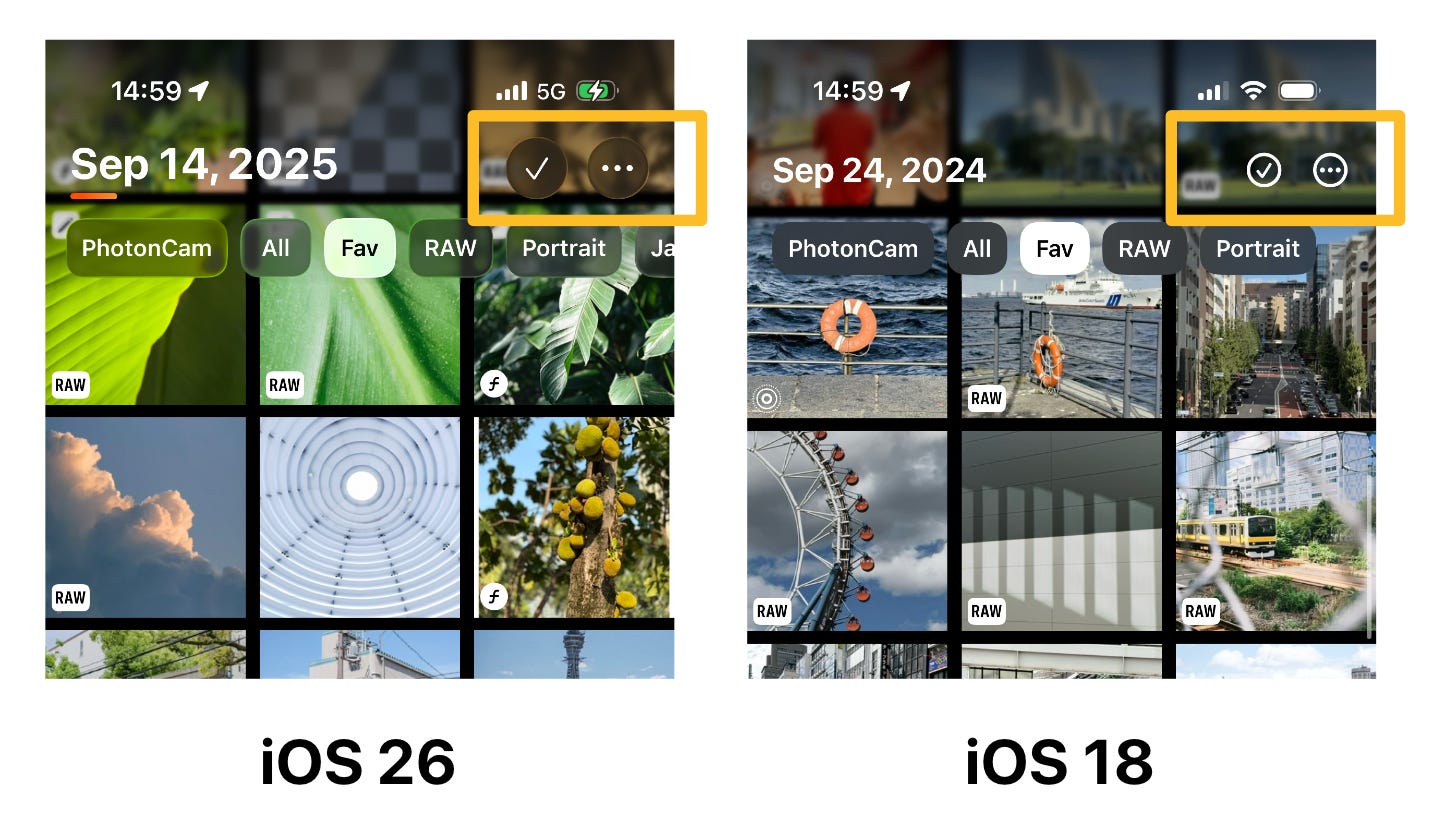
You may have noticed that in the Liquid Glass design, toolbar buttons are larger and placed inside a container with a glass effect. Previously, when using SF Symbols, you might have used circle variants or other styles.

For the Liquid Glass design, consider using the “none” variant of each icon. In PhotonCam, I use the “none” versions of the checkmark and ellipsis on iOS 26, while keeping the original variants of circle on iOS 18 and earlier.
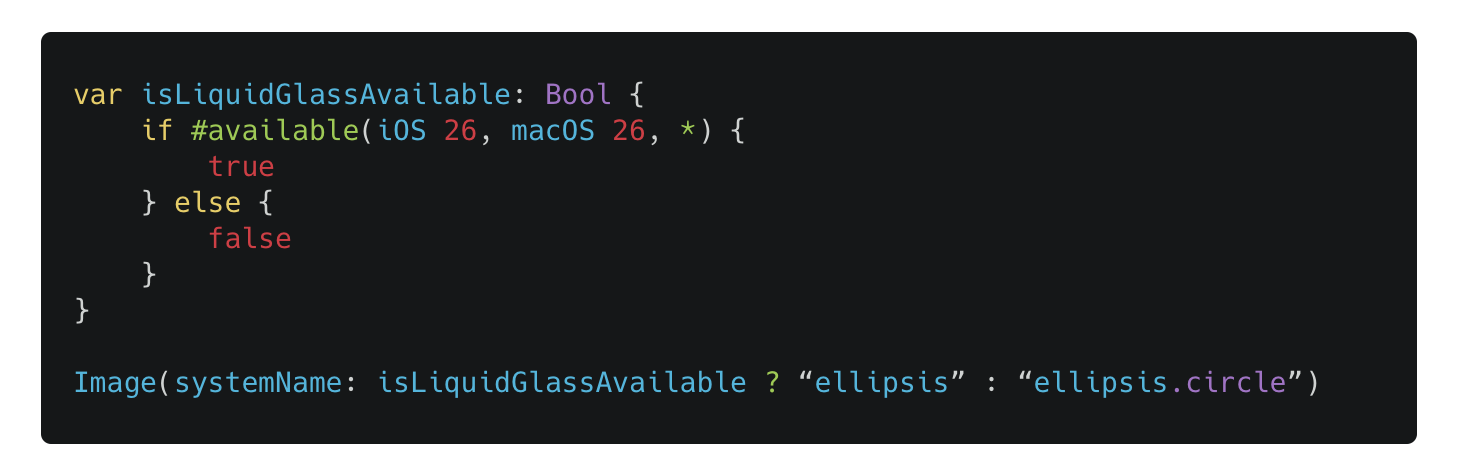
Instead of hard-coding the symbol name by switching the systemName when constructing the Image like this:
We can utilize the symbolVariant modifier to change the variant of the symbol:

This is a clearer way to set the variant of an icon, instead of manipulating the string.
Use GlassEffectContainer to bring better animation and performance
NOTE: As of iOS 26.1, placing a Menu in a GlassEffectContainer will break the morphing animation. It’s recommended to not place a Menu in a GlassEffectContainer for iOS 26.1, even it works on iOS 26.0.
The glassEffect(_:in:) modifier is the simplest way to add a glass effect to a SwiftUI view. But it’s not the whole story—you can use additional APIs to achieve smoother animations and better performance when views appear or dismiss.
The new GlassEffectContainer is a view that acts like a wrapper of the actual Layout view. A layout view is a view that can perform some sorts of layout, like how the HStack and VStack work.
But the GlassEffectContainer is just a wrapper container, telling that the glass effect of the subviews can be in the same group. And thus two or more glass effect can be achieved in one large CALayer, and we can have the morphing animation when the geometry frames of two glass effects overlap with each other.
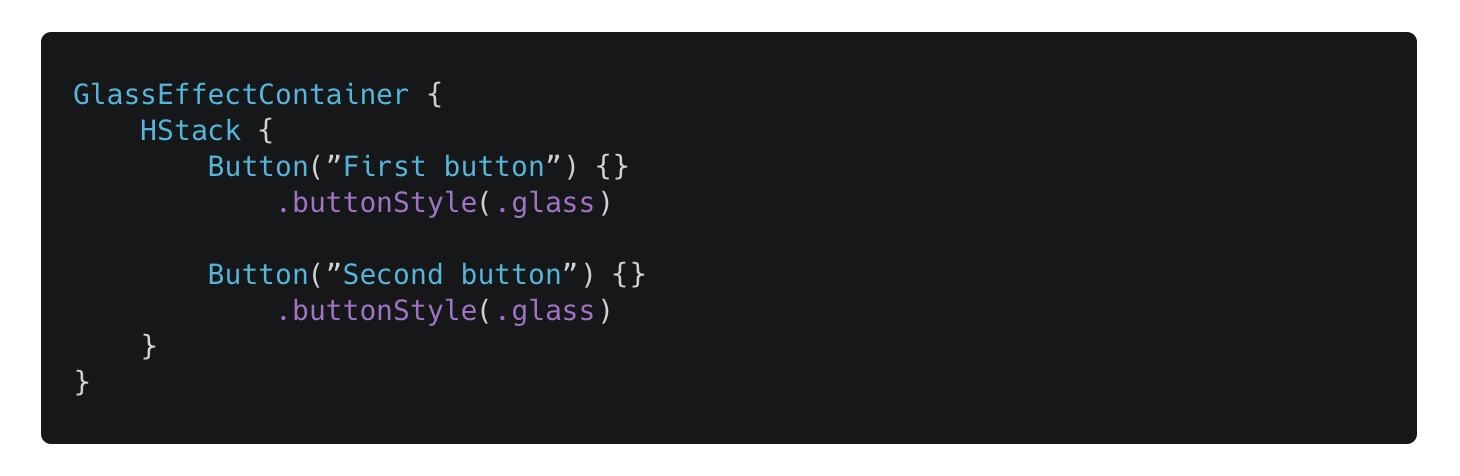
Given this code:
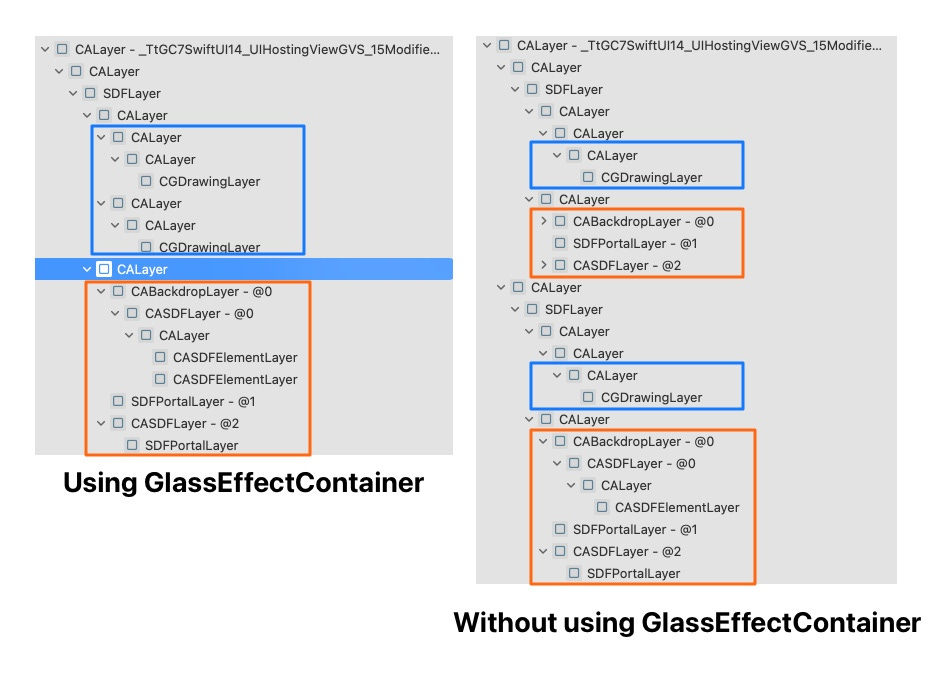
If we inspect the CALayer in the view inspector in two scenarios (with or w/o GlassEffectContainer), we can see that when using GlassEffectContainer, the count of CABackdropLayer that contains the glass effect will now be one, instead of having two different CABackdropLayer as a sublayer in the two CALayer representing the two buttons.
CABackdropLayer that contain the glass effect requires extra steps to achieve the glass effect during the render pass, and it currently needs 3 offscreen textures: it has to render into 3 different offscreen textures before it be drawn in the final texture, which can introduce more performance overhead.
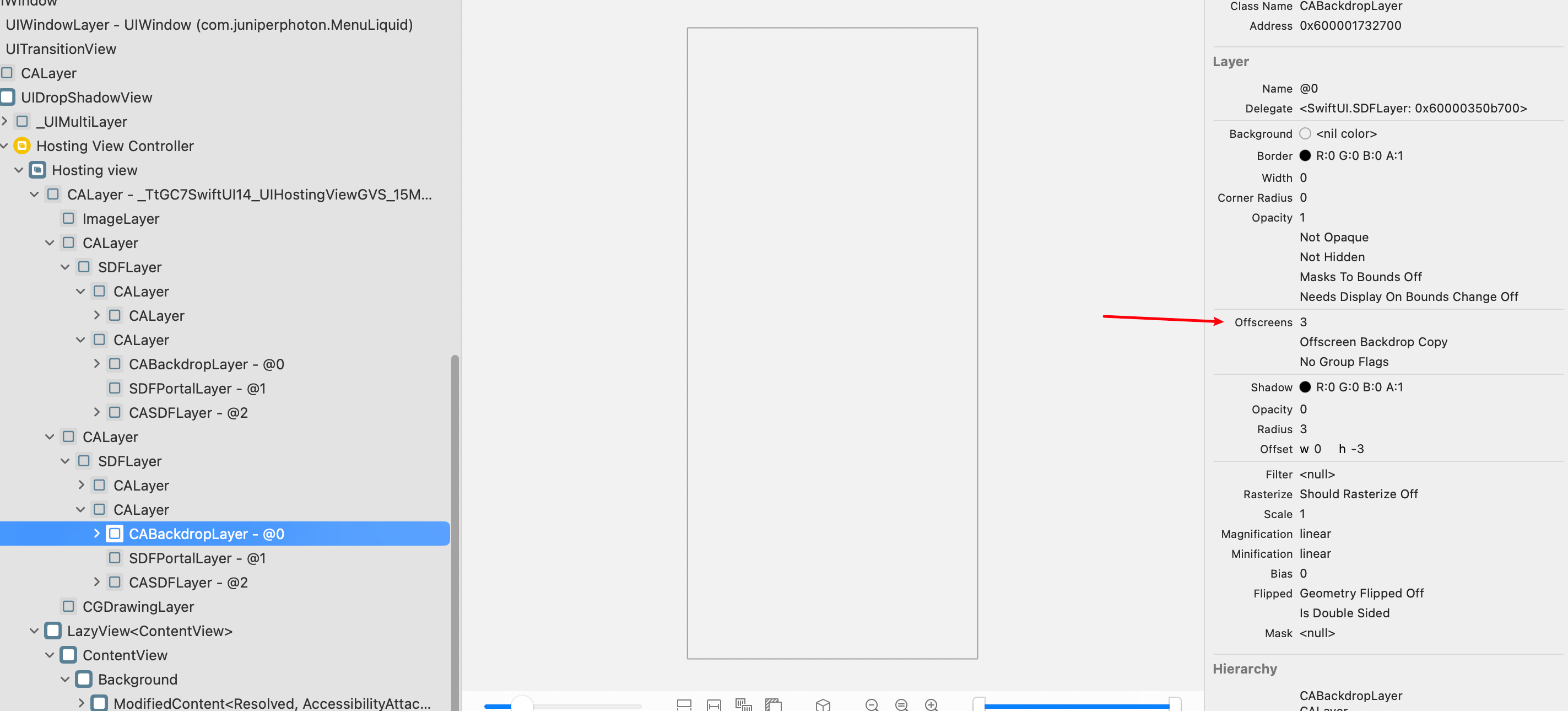
Therefore, keeping the offscreen rendering count as less possible is crucial to achieve high performance. And GlassEffectContainer can help with that.
You can find more information about the offscreen rendering in this WWDC video.
Regarding the animation, let’s consider this code:
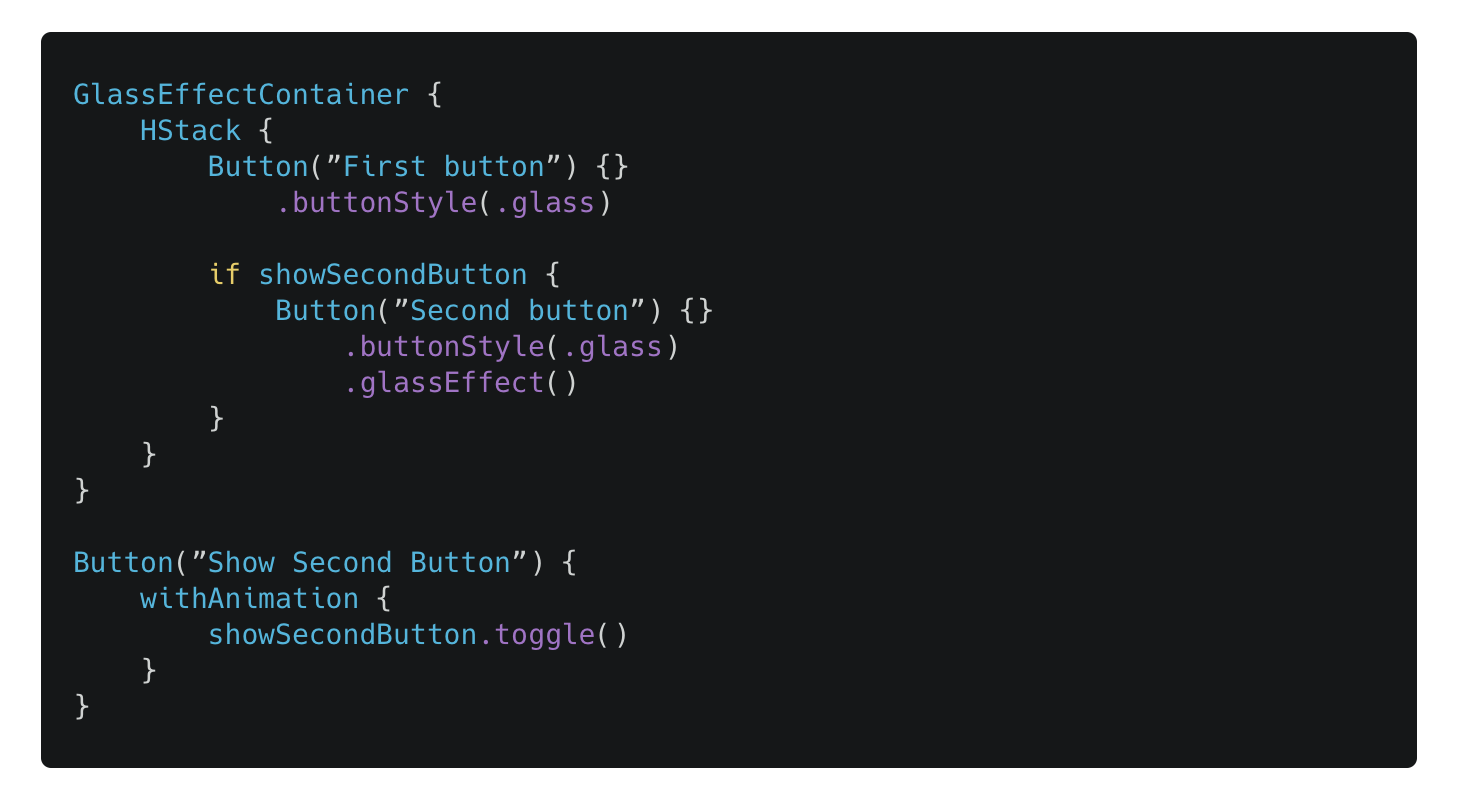
When we tap the “Show Second Button”, the Button(”Second button”) will be transitioned to appear. Thanks to the GlassEffectContainer API, we now have a morphing animation, and the glass effect of the second button will be like growing out of the first button.
To illustrate this animation:
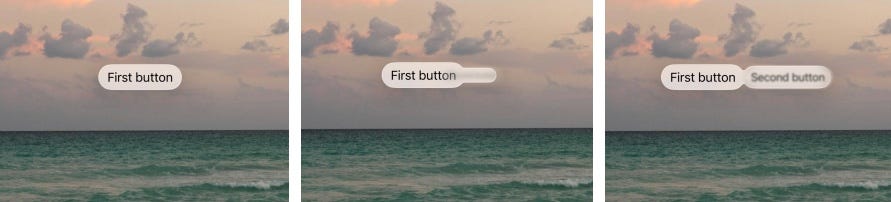
And if we press and drag the button, there also will be a morphing animation between those glass effects.
Furthermore, if you want to group two Views with the same glass effect, you can use the glassEffectUnion(id:namespace:) API to group different views with the same id and namespace:
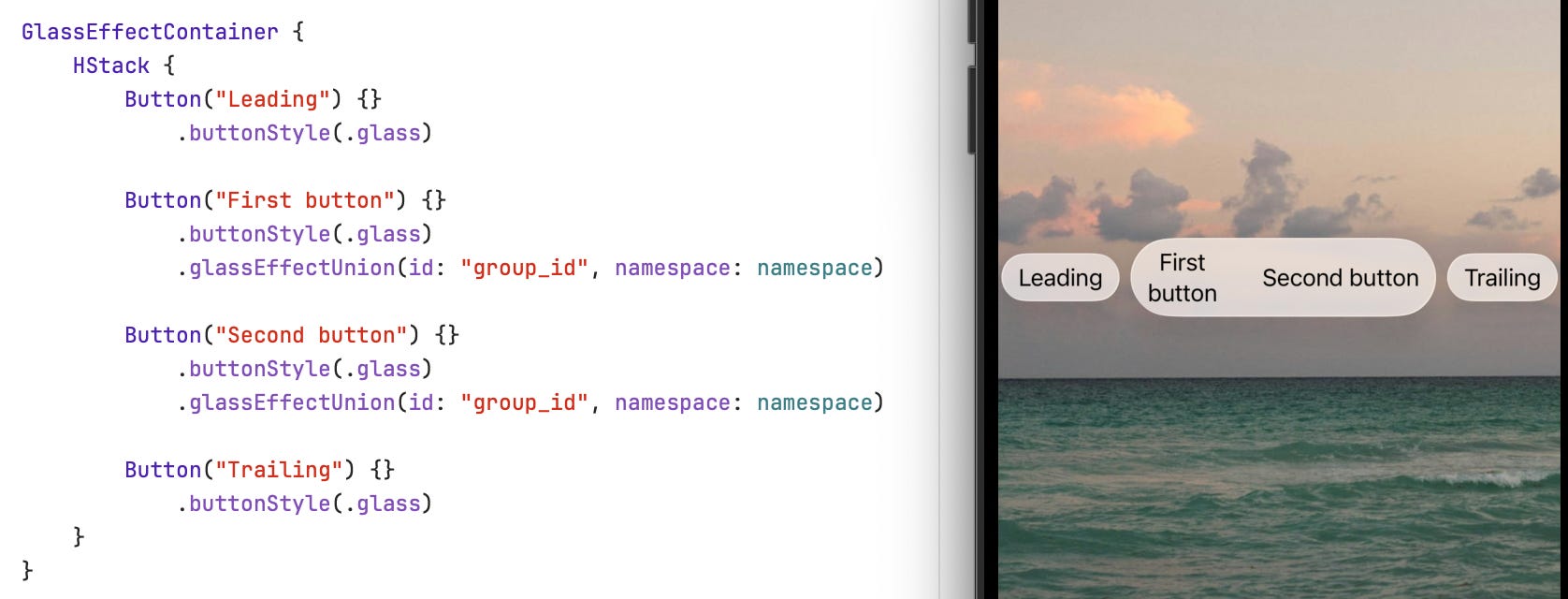
Therefore, you don’t have to wrap the first button and the second button in a HStack and add a dedicated glassEffect() to that HStack to achieve this result.
The same rule applies to other layout views like VStack and your custom Layout.
Finally, by default, the system uses the matchedGeometry transition when transitioning glass effect, which is the morphing animation. However, if it’s too much for you, you can change it to materialize to have the fade in/out animation using the glassEffectTransition(_:) API.
Hit test fixing for buttons using glass effect
A simple button will look like this given the following code:
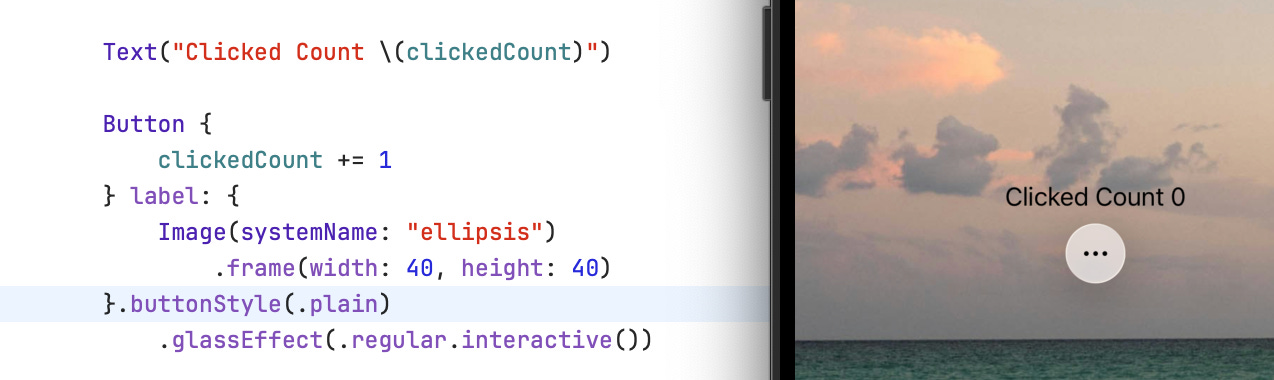
The button has a clear shape of circle, and you may think that clicking the white circle of this button will perform the clicking, right? In fact, given this code, only the ellipsis symbol of this button label can be clicked, or can perform hit-testing, even the while glass effect is interacting with highlighting effects when tapping the white area of the circle.
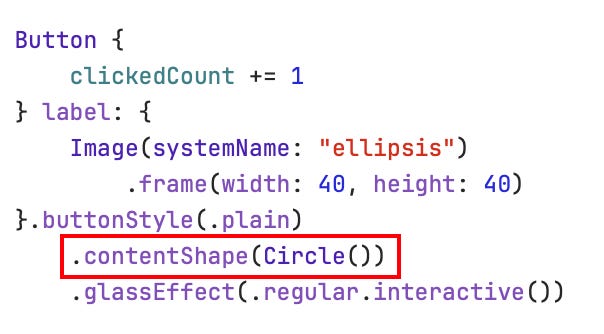
To fix this issue, you simple define the content shape of the button by using the contentShape(_:eoFill:) API.
That’s it. This article covers common pitfalls you may encounter when adopting the Liquid Glass design. I’m sure we’ll uncover more issues (given the quality of this year’s update), but I hope this helped and gives you a start on addressing the known ones.
Thanks for reading!
What a findings! Wrapper for animation fix is great but awful that we need to make such a long solution 😬
Omg I was going insane, wondering why seemingly no one was experiencing this rotation issue as well, thank you so much!! 😭